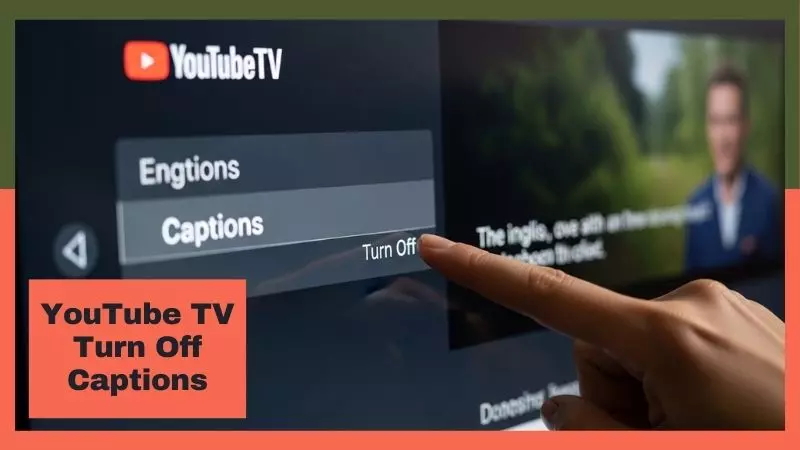
Watching your favorite shows on YouTube TV can be fun, but captions sometimes get in the way of a clean viewing experience. Learning how to turn off captions on YouTube TV helps you enjoy videos without distractions and makes your streaming experience smoother.
Many users look for simple ways to disable subtitles on YouTube TV or remove auto captions during playback. In this guide, we’ll show easy steps to turn off closed captions and customize your settings for the best viewing experience.
Why YouTube TV Captions Won’t Turn Off
Captions on YouTube TV are designed to improve accessibility, but sometimes they refuse to turn off, creating a frustrating experience for viewers. Understanding why this happens helps you fix the problem quickly and ensures a seamless streaming session.
Whether you are watching movies, live TV, or recorded shows, managing captions properly is key to enjoying your content without distractions.
Modern YouTube TV apps, smart TVs, and devices come with automatic caption settings, and if these are not configured correctly, captions may appear unexpectedly. The following sections explain the most common reasons captions won’t turn off and practical solutions for each.
YouTube TV Closed Captioning Won’t Turn Off — Real Reasons
When captions refuse to turn off on YouTube TV, it is usually caused by settings conflicts, app glitches, or device-related issues. Here’s why this problem occurs:
- Default Caption Settings: YouTube TV may have closed captions enabled by default in your profile.
- Device-Specific Restrictions: Some smart TVs or streaming devices override app-level settings.
- App Cache or Glitches: Temporary data stored by the app can prevent captions from updating.
- Profile Sync Issues: Multiple accounts on the same device can interfere with caption settings.
| Reason | Description | Suggested Fix |
| Default caption enabled | Captions automatically turn on for all videos | Go to YouTube TV settings and disable captions |
| Device-specific restrictions | Smart TV overrides app settings | Check your device accessibility or subtitle settings |
| App glitches | Cache or outdated app version | Clear app cache and update YouTube TV |
| Profile conflicts | Multiple accounts sync settings | Log out and reset caption settings for your profile |
Why Can’t I Turn Off Closed Captions on YouTube TV
If you find that turning off captions doesn’t work, it is usually due to hidden settings or app updates. Here’s what you need to check:
- Check Account Caption Preferences: Ensure your account does not have default captions enabled.
- Device Accessibility Settings: Some TVs automatically force captions to appear if accessibility options are turned on.
- Browser or App Version: Older versions may have bugs preventing captions from being disabled.
- Live TV Limitations: Captions on live channels are sometimes controlled by the network and cannot be turned off manually.
Quick Fix Tips
- Open YouTube TV Settings > Accessibility > Captions and turn it off.
- Restart your device after changing caption settings.
- Update the YouTube TV app to the latest version.
- Test on a different device to isolate device-specific issues.
YouTube TV Captions Keep Turning Back On Automatically
If captions keep returning even after turning them off, it’s likely due to automatic sync or profile settings. Here’s why this happens and how to stop it:
- Profile-Based Auto-Sync: Caption preferences may sync across devices via your Google account.
- Device Accessibility Override: Accessibility settings like “Always Show Captions” may force captions to appear.
- App Updates Reset Settings: Some updates revert captions to default.
How to Permanently Turn Off Captions
- Access YouTube TV Settings
- Go to your profile > Settings > Accessibility > Captions.
- Ensure the toggle is off for all profiles.
- Go to your profile > Settings > Accessibility > Captions.
- Check Device Settings
- Smart TVs and streaming devices often have separate caption controls under accessibility.
- Smart TVs and streaming devices often have separate caption controls under accessibility.
- Prevent Auto-Sync
- Turn off sync for accessibility and captions in your Google account to avoid automatic changes.
- Turn off sync for accessibility and captions in your Google account to avoid automatic changes.
- Update and Restart
- Keep YouTube TV updated to the latest version and restart your device after changes.
Table of Permanent Fixes
| Issue | Permanent Solution |
| Auto-sync across devices | Disable account caption sync |
| Accessibility overrides | Turn off TV accessibility captions |
| App update resets | Reapply caption settings after update |
| Live TV default captions | Contact network support for options |
How to Turn Off Captions on YouTube TV (All Devices)
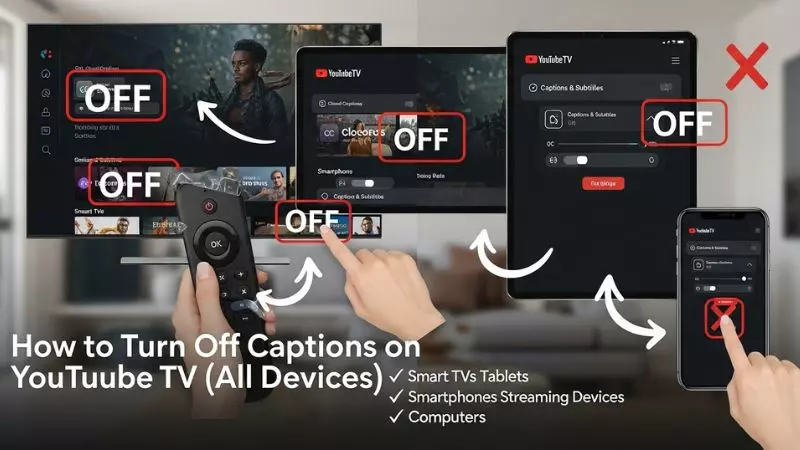
Turning off captions on YouTube TV is slightly different depending on the device you are using. Whether you’re watching on a smartphone, smart TV, or streaming device, following the correct steps ensures captions are permanently disabled. This guide covers all popular devices, including the YouTube TV app, Samsung TV, Roku, and Android TV.
Properly managing captions not only improves viewing comfort but also avoids distractions while watching live channels or recorded shows. Let’s explore each method step by step.
Turn Off Captions on YouTube TV App
Disabling captions on the YouTube TV app is straightforward and can be done in just a few taps. Users often search for how to turn off captions on YouTube TV app or turn off auto captions YouTube TV, and these steps solve the issue efficiently:
Step-by-Step Guide:
- Open the YouTube TV app on your device.
- Tap your profile icon in the top right corner.
- Go to Settings > Accessibility > Captions.
- Toggle the Closed Captions switch to Off.
- Restart the app to ensure settings are applied.
Pro Tips:
- If captions reappear, clear the app cache and repeat the steps.
- Ensure your app is updated to the latest version for all features to work.
YouTube TV Turn Off Captions on Samsung TV
Samsung TVs have device-specific caption settings, which sometimes override the YouTube TV app. Searching for YouTube TV turn off captions Samsung TV or turn off closed caption Samsung TV is common among users. Here’s the correct method:
Steps to Disable Captions:
- Press the Menu button on your Samsung TV remote.
- Navigate to Settings > Accessibility > Caption Settings.
- Toggle Captions to Off.
- Open YouTube TV and verify captions are disabled.
Quick Notes:
- Some Samsung TVs store caption preferences for all apps; adjusting device-level settings ensures captions stay off.
- If using Smart Hub, check the Accessibility section within the hub settings.
YouTube TV Turn Off Captions on Roku
For Roku devices, captions may appear even after disabling them in the app. Users often search YouTube TV turn off captions Roku, so follow these steps:
Steps to Disable Captions on Roku:
- Press the Home button on your Roku remote.
- Go to Settings > Accessibility > Captions Mode.
- Select Off.
- Open YouTube TV and verify that captions are no longer displayed.
Table: Roku Caption Settings
| Setting | Action | Notes |
| Captions Mode | Off | Disables captions for all apps |
| Caption Style | N/A | Only relevant if Captions Mode is On |
| Restart Roku | Optional | Ensures changes take effect |
Turn Off Captions on Android TV
Android TV devices may require both device-level and app-level adjustments to completely remove captions. Keywords like how to turn off captions on YouTube on Android TV are commonly searched by users.
Steps to Turn Off Captions:
- Press the Home button on your Android TV remote.
- Go to Settings > Device Preferences > Accessibility > Captions.
- Toggle Captions to Off.
- Open YouTube TV and verify captions are disabled.
Additional Tips:
- Some Android TVs sync captions across apps, so turning off captions at the device level ensures consistency.
- If auto captions appear during live TV, check YouTube TV app settings and refresh the app.
Turn Off Closed Captions on TV vs YouTube App
Understanding the difference between turning off captions on your TV versus the YouTube TV app is crucial for a seamless viewing experience. Many users struggle with captions reappearing even after disabling them.
This usually happens because TV-level accessibility settings can override app settings, or vice versa. Knowing where to control captions ensures you can watch YouTube TV without interruptions.
Proper caption management improves your viewing experience and helps avoid distractions, especially during live shows or movies. Below, we break down device-specific and app-specific methods.
How to Turn Off Closed Caption on TV
Captions on TVs are often controlled through accessibility settings, and leaving them on at the TV level can override app preferences. Many users search for how to turn off closed caption on TV to stop captions from appearing across all apps, including YouTube TV.
Steps to Turn Off TV Captions:
- Press the Menu or Home button on your TV remote.
- Navigate to Settings > Accessibility > Captions or Subtitles.
- Toggle Closed Captions to Off.
- Save settings and restart the TV if necessary.
Key Points:
- Some TVs, like Samsung or LG, may store caption preferences globally for all apps.
- Disabling captions at the TV level ensures that apps like YouTube TV or Roku cannot override your preference.
- If captions persist, check for software updates or accessibility options like “Always Show Captions.”
Turn Off Closed Caption on YouTube App
Disabling captions directly on the YouTube TV app is slightly different from TV-level settings. Users often look for turn off closed caption on YouTube app when captions reappear despite being disabled on the TV.
Steps to Disable Captions on YouTube TV App:
- Open the YouTube TV app on your device.
- Tap your profile icon > Settings > Accessibility > Captions.
- Toggle Closed Captions to Off.
- Restart the app to apply changes.
Pro Tips:
- For mobile or tablet users, ensure app-level captions are disabled, as device-level settings may not affect the app.
- If watching multiple profiles, turn off captions on each profile separately.
- Auto captions during live TV may require both app and TV-level settings adjustment.
Why TV Captions Affect YouTube TV
Many users notice that even after turning off captions in the app, captions appear on the TV. This happens because TV-level caption settings often override app settings, especially on smart TVs and streaming devices.
Reasons Captions Persist:
- Device Accessibility Overrides: Smart TVs force captions on due to accessibility settings.
- Profile Sync Conflicts: Multiple profiles on YouTube TV may retain default captions.
- Software Updates: Updates can reset caption preferences to default.
How to Fix:
- Always disable captions at both TV and YouTube TV app levels.
- Check device-specific accessibility options like “Always Show Captions.”
- Restart your device and app after changing settings to ensure permanent changes.
Table: TV vs YouTube TV App Captions
| Feature | TV-Level Captions | YouTube TV App Captions | Notes |
| Accessibility Override | Yes | No | TV settings can override app settings |
| Device Dependency | High | Low | Works per device profile |
| Persistent Captions | Likely if TV is on | Only app-specific | Disable both for full control |
| Live TV Captions | Controlled by TV | Controlled by network | May require manual adjustment |
Subtitles vs Closed Captions on YouTube TV
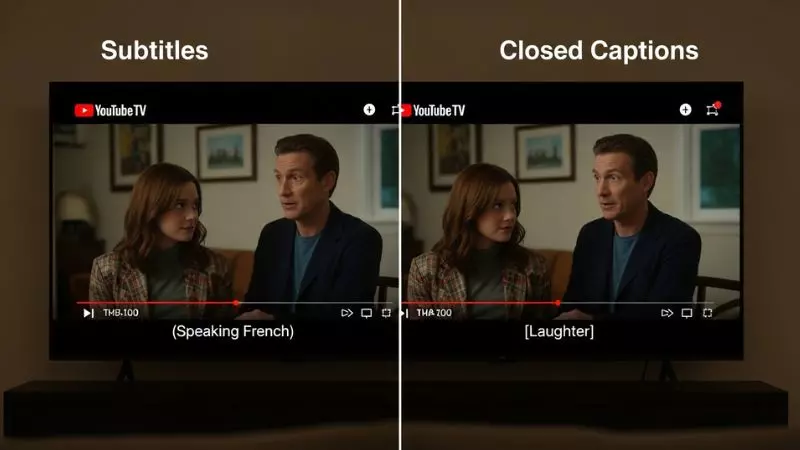
Understanding the difference between subtitles and closed captions is essential for a smooth YouTube TV experience. Many users search for how to turn on subtitles on YouTube TV on smart TV or confuse subtitles with closed captions, which leads to unnecessary frustration. Proper knowledge ensures you know when to use each option.
Subtitles are mainly meant for translating spoken dialogue into another language, while closed captions include dialogue, sound effects, and other auditory information to help viewers with hearing impairments. Choosing the right setting improves comprehension and viewing comfort.
How to Turn On Subtitles on YouTube TV on Smart TV
Enabling subtitles on a smart TV can be done easily within YouTube TV settings. This is especially useful for foreign-language content or when you want additional context while watching live or recorded shows.
Steps to Enable Subtitles:
- Open the YouTube TV app on your smart TV.
- Navigate to Profile > Settings > Accessibility > Subtitles.
- Toggle Subtitles to On.
- Choose your preferred language if multiple options are available.
- Start playback to confirm subtitles appear correctly.
Tips:
- Subtitles are separate from closed captions and may not include sound descriptions.
- If subtitles do not appear, check your smart TV’s accessibility or language settings.
Difference Between Subtitles and Closed Captions
Understanding the difference helps avoid confusion while managing YouTube TV captions.
Comparison Table:
| Feature | Subtitles | Closed Captions |
| Purpose | Translate dialogue | Aid hearing-impaired viewers |
| Includes Sound Effects | No | Yes |
| Language Options | Multiple languages | Usually same language as audio |
| Display Control | App-level | App or device-level |
| Recommended Use | Foreign content | Accessibility and clarity |
Key Takeaways:
- Subtitles focus on translation, while closed captions provide full audio description.
- Knowing the difference helps manage YouTube TV viewing without distractions.
YouTube TV Caption Bugs (Reported by Users)
Despite the ability to turn captions on or off, some YouTube TV users report bugs that prevent proper management. Common searches include YouTube TV captions won’t turn off Reddit, YouTube TV closed captions won’t turn off, and YouTube TV closed captioning won’t turn off. Understanding these bugs helps troubleshoot effectively.
YouTube TV Captions Won’t Turn Off Reddit
Many users report on forums like Reddit that captions refuse to turn off, even after following the correct steps. Common causes include:
- Profile sync issues between multiple accounts
- Device accessibility overrides
- Outdated app or TV software
- Live TV channels enforcing network captions
Solutions Reported by Users:
- Disable captions on both the app and TV accessibility settings
- Log out and log back in to refresh profile settings
- Clear app cache and update YouTube TV to the latest version
- Restart the device after changing caption settings
YouTube TV Closed Captions Won’t Turn Off
Users also report issues where closed captions specifically won’t turn off during playback. This can be caused by:
- Device-specific caption overrides on smart TVs or streaming devices
- App glitches or temporary data conflicts
- Auto-syncing of captions from a Google account
Fix Steps:
- Turn off captions at the TV device level.
- Disable captions in the YouTube TV app.
- Restart the device to ensure settings apply.
- If captions persist, check for app updates or firmware updates on your device.
YouTube TV Closed Captioning Won’t Turn Off
In some cases, closed captioning may return even after turning them off. Users often report this happens due to app updates resetting preferences or network-enforced captions on live channels.
Advanced Tips:
- Turn off auto-sync for captions in your Google account
- Check individual profile settings on YouTube TV
- Use device-level accessibility settings to override captions completely
- Contact YouTube TV support if network captions cannot be disabled
Quick Fix: Turn Off YouTube TV Captions in 30 Seconds
Sometimes, you just want to turn off captions on YouTube TV quickly without digging through multiple menus. With the right approach, you can disable captions in less than a minute. This section provides fast, practical solutions for both app and device-level settings, helping you enjoy uninterrupted streaming.
Whether captions appear due to TV overrides, app glitches, or account settings, these quick fixes solve the problem immediately.
Restart App vs TV Settings
One of the fastest ways to disable captions is understanding the difference between app-level and TV-level settings. Many users try turning captions off in the app, only to find they reappear due to TV accessibility settings.
Quick Steps:
- Restart App:
- Close the YouTube TV app completely.
- Open the app again and check if captions are off.
- This works if a temporary app glitch was causing captions to appear.
- Close the YouTube TV app completely.
- TV Settings:
- Press your TV remote Menu > Settings > Accessibility > Captions.
- Toggle captions Off.
- Restart the TV if captions persist.
- Press your TV remote Menu > Settings > Accessibility > Captions.
Pro Tips:
- Restarting both app and TV ensures temporary glitches are cleared.
- Some smart TVs may require firmware updates for captions settings to stick.
Table: Restart App vs TV Settings
| Method | Action Time | Effectiveness | Notes |
| Restart App | 10-15 sec | Moderate | Fixes app glitches only |
| TV Settings | 20-30 sec | High | Overrides device-level auto captions |
| Both Combined | ~30 sec | Very High | Ensures captions stay off permanently |
Account-Level Caption Settings
Captions can also appear due to Google account or YouTube TV profile-level preferences. Adjusting these settings can permanently prevent captions from turning back on across devices.
Steps to Adjust Account-Level Captions:
- Open YouTube TV app or website.
- Go to Profile > Settings > Accessibility > Captions.
- Ensure Closed Captions is toggled Off for your profile.
- Repeat for all profiles if multiple accounts exist.
- Optionally, disable caption sync in your Google account settings.
Tips:
- Account-level settings override app defaults, so captions will remain off even after app updates.
- This is especially useful if you use multiple devices like smart TVs, Roku, or Android TV.
Frequently Asked Questions
How do I turn off captions on YouTube TV app quickly?
Open YouTube TV app > Profile > Settings > Accessibility > Captions and toggle it off to disable captions instantly.
Why do YouTube TV captions keep turning back on?
Captions may reappear due to TV-level accessibility settings or profile sync across multiple devices.
Can I turn off auto captions on YouTube TV?
Yes, go to Accessibility > Captions in the app or device settings and disable auto captions for all profiles.
How to disable closed captions on Samsung TV for YouTube TV?
Press Menu > Settings > Accessibility > Captions on your Samsung TV and toggle captions off.
How do I remove captions on Roku while watching YouTube TV?
Go to Roku Settings > Accessibility > Captions Mode and select Off to remove captions from YouTube TV.
How to turn off subtitles on YouTube TV smart TV?
Open YouTube TV > Settings > Accessibility > Subtitles, toggle it off, and select the desired language if needed.
Why TV captions affect YouTube TV captions?
TV-level caption or accessibility settings often override app-level caption settings, causing captions to appear automatically.
How to permanently turn off YouTube TV captions?
Disable captions at both the app level and TV accessibility settings, and ensure account-level caption sync is off.
How to fix YouTube TV closed captions not turning off?
Clear app cache, update YouTube TV, restart the device, and turn off captions in both app and TV settings.
Can I turn off captions on YouTube TV for multiple profiles?
Yes, go to each profile’s Settings > Accessibility > Captions and toggle captions off individually.
Final Words
Managing captions effectively is crucial for a smooth streaming experience. By following these steps, you can YouTube TV Turn Off Captions on any device, including smart TVs, Roku, and Android TV. Understanding device-level, app-level, and account-level settings ensures captions stay off permanently.
Whether you are watching live TV, recorded shows, or foreign content, knowing how to disable captions on YouTube TV improves viewing comfort and avoids interruptions. Always check for updates and profile-specific settings to maintain your preferences.

Chriselle Lim is a passionate digital creator and lifestyle blogger based in California, USA. As the voice behind Blogzeno, she shares creative captions, inspiring Instagram bios, insightful celebrity stories, and simple insurance guides designed for everyday readers. Emily believes that words have the power to connect people whether it’s through a perfect caption or a helpful article.
With years of experience in online writing and content strategy, Emily’s mission is to make information both useful and enjoyable. Her work blends creativity with clarity, helping readers express themselves confidently and stay informed about what truly matters.
When she’s not writing, you’ll find her exploring photography, social media trends, and new ways to inspire digital creators worldwide. Follow her journey on Blogzeno — where creativity meets everyday life.