Creating powerful YouTube Captions is one of the smartest ways to boost video visibility, audience retention, and click through rate. The right captions help your content reach more viewers through YouTube search, suggested videos, and accessibility features.
From catchy YouTube video captions to SEO friendly YouTube descriptions, every line plays a role in growing watch time and engagement naturally.
If you want more views, likes, and subscribers, optimized YouTube Captions make your videos easier to discover and more fun to watch.
YouTube Captions Guide
Youtube Captions
YouTube captions are the on screen text that shows what is being said in a video. They help viewers understand your content better, improve accessibility, and increase search visibility. When used smartly, captions boost watch time, engagement rate, and even help your videos rank higher in YouTube SEO. As a creator, you should treat captions as part of your content strategy, not just an extra feature.
Well written YouTube captions support different audiences, including non native speakers and people watching without sound. They also help YouTube understand your video context using keyword signals, which improves discoverability in search and suggested feeds.
Why YouTube captions matter for growth
- Improve video accessibility for global audiences
- Increase average watch time and retention
- Help videos rank for long tail YouTube search queries
- Support mobile users watching on mute
- Boost engagement and click through rate
- Make Shorts and long videos easier to follow
- Strengthen YouTube SEO with keyword relevance
Best practices for writing YouTube captions
- Use natural language, not robotic text
- Add relevant LSI keywords related to your topic
- Keep sentences short and readable
- Match captions with the speaker timing
- Avoid keyword stuffing
- Focus on clarity and user experience
- Proofread before publishing
Common types of YouTube captions
| Caption Type | Purpose | Best Use Case |
| Open Captions | Always visible on video | Social clips and Shorts |
| Closed Captions | Can be turned on or off | Tutorials and long videos |
| Auto Captions | Generated by YouTube AI | Quick publishing |
| Manual Captions | Uploaded by creator | Professional channels |
Using the right caption style improves both audience satisfaction and algorithm performance.
Youtube Closed Captions
YouTube closed captions are subtitles that viewers can enable or disable while watching a video. They are perfect for accessibility, multilingual audiences, and professional content creators who want full control over text quality. Closed captions also help YouTube index your content using speech recognition and keyword relevance.
When you upload closed captions manually, you send strong SEO signals to YouTube. It understands your topic better, which improves ranking for low competition long tail phrases like how to add captions on YouTube videos or best captions for YouTube growth.
Benefits of YouTube closed captions
- Improve accessibility for hearing impaired users
- Increase video SEO and discoverability
- Support international viewers
- Reduce bounce rate
- Improve audience retention
- Strengthen brand professionalism
How to add closed captions on YouTube
- Open YouTube Studio dashboard
- Select your uploaded video
- Click Subtitles from the menu
- Upload a caption file or paste text
- Sync timing with audio
- Save and publish
Manual vs automatic closed captions
| Feature | Manual Captions | Auto Captions |
| Accuracy | Very high | Medium |
| SEO Value | Strong | Moderate |
| Editing Control | Full control | Limited |
| Professional Use | Best choice | Quick setup |
| Language Support | Multiple | Limited by AI |
For serious creators, manual closed captions always deliver better performance and credibility.
Are Youtube Captions Auto Generated
Many creators ask, are YouTube captions auto generated and the answer is yes. YouTube uses speech recognition technology to automatically create captions for most videos. These auto generated captions help speed up publishing, but they are not always accurate, especially with accents, fast speech, or technical words.
Auto captions are useful for beginners, but relying only on them can hurt user experience and SEO. Editing them manually makes your content more professional and improves ranking for long tail YouTube caption optimization keywords.
How auto generated YouTube captions work
- YouTube scans your audio
- AI converts speech into text
- Captions sync automatically
- Creator can review and edit
- Final captions go live
Pros and cons of auto generated captions
| Aspect | Advantage | Limitation |
| Speed | Instant creation | Needs editing |
| Cost | Free | Not always accurate |
| SEO | Helps indexing | Misses keywords |
| Accessibility | Better than none | Errors confuse users |
When to use auto captions
- For fast uploads
- For Shorts and quick content
- For testing new channels
- For drafts before manual edits
When to avoid auto only captions
- Professional tutorials
- Business channels
- Educational videos
- Monetized content
YouTube Captions to Text & Transcript
Youtube Captions To Text
Converting YouTube captions to text helps creators, students, bloggers, and researchers reuse video content in written form. When you turn captions into readable text, you unlock SEO value, improve content accessibility, and save time on manual typing. Many people use caption to text for blogs, notes, subtitles editing, and content repurposing strategies.
Using YouTube captions as text also improves workflow for marketers and educators. You can extract spoken words, edit them, and transform them into articles, scripts, summaries, or social media posts with better accuracy and speed.
Why convert YouTube captions to text
- Create blog posts from video content
- Generate video transcripts for SEO
- Improve accessibility for users
- Save time on manual transcription
- Reuse content for social platforms
- Build keyword rich written material
- Support research and study notes
Simple ways to get YouTube captions as text
- Use YouTube built in transcript feature
- Copy captions from desktop view
- Download subtitle files from Studio
- Use caption extractor tools
- Convert SRT to plain text
- Edit text for readability
Popular formats after conversion
| Format | Use Case | Benefit |
| Plain Text | Blogs and notes | Easy editing |
| SRT | Subtitle editing | Keeps timing |
| DOCX | Documents | Professional use |
| Sharing | Clean presentation |
Turning YouTube captions into text gives your content a second life and improves your SEO footprint using long tail keyword rich material.
Youtube Captions Transcript
A YouTube captions transcript is the full written version of everything spoken in a video. It helps users understand content faster and helps search engines index your video properly. Transcripts improve ranking, increase session time, and support multilingual audiences.
Creators use transcripts for podcast posts, educational materials, blog conversions, and accessibility improvements. With a proper transcript, your video becomes searchable not only on YouTube but also on Google.
Benefits of YouTube captions transcript
- Boost YouTube SEO performance
- Increase content discoverability
- Improve audience understanding
- Help hearing impaired users
- Create reusable written assets
- Improve long tail keyword targeting
How to get a transcript from YouTube captions
- Open the video on desktop
- Click the three dots below video
- Select Show transcript
- Copy the full text
- Edit for formatting
- Save as document
Caption transcript vs manual transcription
| Feature | Caption Transcript | Manual Typing |
| Speed | Very fast | Slow |
| Accuracy | Good after edits | High but time heavy |
| SEO Use | Excellent | Excellent |
| Cost | Free | Time consuming |
Using a YouTube captions transcript is one of the smartest ways to scale written content from video without starting from zero.
Youtube Captions Copy Paste
YouTube captions copy paste is the easiest method to reuse spoken content from any video. Instead of typing everything, you simply copy the transcript text and paste it into your editor, blog, or document. This method is popular among students, bloggers, and content marketers.
Copy pasting captions allows you to turn videos into articles, summaries, scripts, or subtitles in minutes. It also helps you collect keyword rich phrases directly from your video speech for SEO optimization.
Steps to copy paste YouTube captions
- Open the YouTube video
- Click Show transcript
- Select all caption text
- Copy the content
- Paste into your editor
- Clean formatting and grammar
Best uses of copied captions
- Blog post creation
- YouTube description writing
- Social media snippets
- Email newsletters
- Course materials
- Research documentation
Things to edit after pasting
- Remove timestamps
- Fix grammar errors
- Add punctuation
- Improve readability
- Insert SEO keywords
Copy pasting YouTube captions saves time and keeps your written content aligned with your original video message.
Youtube Captions Search
YouTube captions search lets users find specific words or topics inside a video using caption text. Instead of watching the whole video, you search within the transcript to jump directly to the part you need. This feature improves user experience and research speed.
For creators, searchable captions help viewers stay longer and interact more with content. It also improves indexing because captions provide structured text data to YouTube algorithms.
How YouTube captions search works
- Open a video
- Click Show transcript
- Use browser search
- Type your keyword
- Jump to timestamp
- Read exact section
Why captions search is useful
- Find topics faster
- Improve learning speed
- Save watch time
- Support academic research
- Help viewers navigate content
- Increase retention signals
SEO impact of searchable captions
| Factor | Effect |
| Keyword Presence | Improves ranking |
| User Interaction | Boosts engagement |
| Accessibility | Expands audience |
| Watch Time | Higher session duration |
Using YouTube captions search makes your content easier to explore and strengthens both usability and SEO performance.
Search Youtube Captions
To search YouTube captions, you rely on transcript text rather than video titles alone. This method helps users locate exact phrases, quotes, or instructions inside long videos. It is extremely helpful for tutorials, interviews, and educational channels.
Creators benefit when users can search captions easily because it keeps people on the video longer and improves satisfaction. Caption based searching also supports keyword discovery and content planning.
Ways to search inside YouTube captions
- Use Show transcript option
- Apply browser find command
- Search specific phrases
- Jump to timestamps
- Review keyword context
Who uses caption search most
- Students
- Researchers
- Bloggers
- Journalists
- Marketers
- Online learners
Best practices for searchable captions
- Use clear spoken language
- Add manual captions
- Edit auto captions
- Include topic keywords
- Keep sentences simple
As a guide, always remember: the better your captions are written, the easier it becomes for users and search engines to search YouTube captions and understand your content deeply.
Download YouTube Captions
Youtube Captions Download
YouTube captions download helps creators, bloggers, students, and editors save subtitle text for offline use. Downloaded captions can be reused for blogs, transcripts, translations, SEO content, and accessibility improvements. Instead of rewriting everything, you can export captions and edit them professionally.
When you download captions, you gain full control over your video text. You can convert it into articles, scripts, notes, or social captions while keeping keyword relevance and accuracy strong for Google indexing.
Why download YouTube captions
- Create SEO friendly video transcripts
- Repurpose video content into blogs
- Improve accessibility offline
- Edit subtitles professionally
- Translate content easily
- Save time on manual typing
- Build keyword rich documents
Ways to download YouTube captions
- From YouTube Studio subtitle section
- Download SRT caption files
- Use transcript copy feature
- Convert captions to text format
- Export subtitles for editing
Common caption file formats
| Format | Best Use | Advantage |
| SRT | Subtitle editing | Keeps timing |
| TXT | Blog content | Easy to edit |
| VTT | Web subtitles | Browser friendly |
| DOCX | Documents | Professional layout |
Downloading YouTube captions gives your content more flexibility, control, and long tail SEO value for growth focused creators.
Youtube Video Captions Download
YouTube video captions download is useful when you need subtitles from a specific video for study, content writing, translation, or editing. It allows you to store spoken text and reuse it across platforms like blogs, courses, newsletters, and social media.
Video caption downloads also help creators analyze competitor videos, extract keywords, and build optimized scripts for future uploads.
How to download captions from a YouTube video
- Open YouTube Studio
- Select your video
- Click Subtitles
- Choose language track
- Download subtitle file
- Edit or convert text
Best uses for downloaded video captions
- Blog post creation
- Course material writing
- Video script planning
- Multilingual subtitles
- Research and documentation
Manual vs auto caption download
| Feature | Manual Captions | Auto Captions |
| Accuracy | High | Medium |
| SEO Quality | Strong | Moderate |
| Editing Need | Low | High |
| Professional Use | Best | Starter option |
Downloading YouTube video captions saves time and turns your video into reusable, searchable written content.
YouTube Auto Captions & Translation
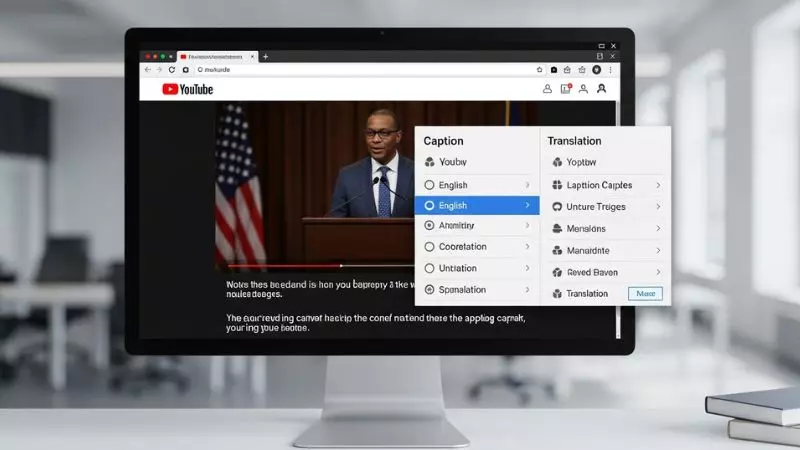
Youtube Auto Captions
YouTube auto captions are automatically generated subtitles created using speech recognition technology. They help creators publish faster and allow viewers to understand videos even when sound is muted. Auto captions are useful, but they still need editing for best user experience and SEO performance.
Auto captions improve accessibility and help YouTube understand video topics using text signals. However, creators should always review them for grammar, timing, and keyword accuracy before publishing professionally.
How YouTube auto captions work
- Audio is scanned by AI
- Speech converts into text
- Captions sync with video
- Creator edits if needed
- Final captions go live
Benefits of YouTube auto captions
- Fast subtitle creation
- Free built in feature
- Improves accessibility
- Helps SEO indexing
- Supports mobile viewers
Limitations of auto captions
- Accent issues
- Technical word errors
- Punctuation mistakes
- Timing problems
- Missing keywords
When to rely on auto captions
- Short form content
- Draft subtitles
- Quick uploads
- Testing channels
Auto captions are a smart starting point, but editing them turns average subtitles into professional, searchable assets.
Youtube Auto Translate Captions
YouTube auto translate captions allows viewers to convert subtitles into different languages instantly. This feature expands global reach and makes your content accessible to international audiences without creating separate videos.
Auto translation helps creators reach multilingual users and increase watch time from different regions. It also improves discoverability for long tail language based search queries.
How auto translate captions work on YouTube
- Enable captions
- Click settings icon
- Choose subtitles option
- Select auto translate
- Pick language
Benefits of auto translated captions
- Reach global audience
- Improve accessibility
- Increase watch time
- Support international SEO
- Build worldwide engagement
Limitations of auto translation
| Area | Issue |
| Accuracy | Not perfect |
| Grammar | Needs review |
| Technical Terms | Sometimes wrong |
| Tone | Can sound robotic |
Auto translate captions help scale your content internationally, but manual review improves quality and trust.
Auto Translate For Youtube Captions
Using auto translate for YouTube captions is a powerful way to break language barriers and grow viewers worldwide. It allows one caption file to serve multiple languages instantly without extra uploads.
Creators who use caption translation increase engagement from non native speakers and boost global discoverability across search and suggested feeds.
Why use auto translate for YouTube captions
- Expand international reach
- Improve multilingual accessibility
- Increase retention rate
- Support foreign language SEO
- Reduce subtitle creation cost
Best practices for translated captions
- Start with clean English captions
- Edit auto captions first
- Avoid slang heavy speech
- Check translated meaning
- Add manual subtitles for top languages
Auto translate vs manual translation
| Feature | Auto Translate | Manual Translation |
| Speed | Instant | Slow |
| Cost | Free | Paid |
| Accuracy | Medium | High |
| SEO Value | Good | Best |
As a guide, always remember: strong original captions create better translations. Clean text leads to higher trust, better rankings, and more global YouTube growth.
YouTube Captions for Shorts
Youtube Captions For Shorts
YouTube captions for Shorts are short, punchy text lines that appear with your vertical videos and instantly grab attention. Since Shorts are fast paced, captions must be clear, emotional, and action driven to stop scrolling users. Good captions improve retention, boost engagement, and help Shorts rank in discovery feeds.
When writing captions for YouTube Shorts, focus on curiosity, relevance, and readability. Use power words, long tail keywords, and natural phrases so both users and the algorithm understand your content better.
Why captions matter for YouTube Shorts
- Stop users from scrolling
- Improve watch time
- Increase likes and comments
- Help Shorts get discovered
- Support silent viewers
- Improve click through rate
Tips to write Shorts captions
- Keep it under two lines
- Use emotional triggers
- Add curiosity based words
- Include niche keywords
- Match video mood
- Avoid long sentences
Elements of a strong Shorts caption
| Element | Purpose | Example Style |
| Hook | Grab attention | Question or shock line |
| Keyword | Improve SEO | Niche phrase |
| Emotion | Connect viewers | Motivation or humor |
| CTA | Drive action | Like, comment, share |
Short captions turn simple videos into scroll stopping content.
Best Youtube Captions For Shorts
The best YouTube captions for Shorts combine clarity, emotion, and SEO signals. They tell viewers why they should watch in one quick sentence. A strong caption increases replay rate and makes your Shorts more shareable.
Creators who use optimized Shorts captions see higher impressions and stronger audience growth. Your caption should match your niche and trigger curiosity instantly.
Qualities of best Shorts captions
- Short and impactful
- Keyword focused
- Emotion driven
- Easy to read
- Action oriented
- Mobile friendly
Examples of high performing Shorts captions styles
- Question based hooks
- Problem solving lines
- Before and after curiosity
- Motivational punch lines
- Surprise statements
Caption performance comparison
| Caption Style | Engagement Level |
| Generic | Low |
| Emotional | High |
| Question Based | Very High |
| Story Driven | High |
| Curiosity Hook | Excellent |
Best YouTube captions for Shorts are simple but strategic. They guide viewers to watch, react, and follow.
Viral Youtube Captions
Viral YouTube captions are written to trigger emotion, curiosity, or surprise in just a few words. Viral captions help Shorts spread faster because people feel connected and want to share them.
A viral caption is not about being long, it is about being irresistible. It should match trends, audience mood, and niche keywords for discoverability.
What makes a caption go viral
- Emotional hook
- Relatable language
- Curiosity factor
- Trend alignment
- Clear value promise
Structures for viral captions
- You will not believe this
- This changed everything
- Nobody talks about this
- Watch till the end
- I tried this for 7 days
Viral caption impact
| Factor | Result |
| Shares | Higher reach |
| Comments | More interaction |
| Retention | Better watch time |
| Follows | Channel growth |
If your caption makes someone feel something, it has viral potential.
Trending Youtube Captions
Trending YouTube captions follow what people are searching, watching, and reacting to right now. These captions use fresh language, popular phrases, and niche keywords that match current audience behavior.
Using trending captions helps Shorts enter discovery feeds faster and stay relevant longer. Creators who follow trends increase impressions and subscriber growth naturally.
How to create trending captions
- Observe Shorts feed daily
- Note repeating phrases
- Follow niche hashtags
- Track audience comments
- Update captions weekly
Examples of trending caption themes
- Growth mindset
- Life hacks
- AI and tech tips
- Fitness challenges
- Motivation stories
Trending vs outdated captions
| Type | Performance |
| Trending | High reach |
| Repetitive | Medium |
| Outdated | Low |
| Creative Fresh | Very High |
Trending captions keep your Shorts competitive and algorithm friendly.
Youtube Shorts Viral Captions
YouTube Shorts viral captions are specially written for vertical, fast scroll content. They combine hook, keyword, and emotion in one line to stop viewers instantly.
If your Shorts caption feels natural and exciting, people watch longer and interact more. This behavior signals YouTube to push your content to more users.
Formula for viral Shorts captions
- Hook in first 3 words
- Add niche keyword
- Trigger curiosity
- End with action
Examples of viral Shorts caption formats
- This tip saved me
- Do not skip this
- Watch before you try
- Nobody tells you this
- Try this today
Shorts caption checklist
- Is it readable on mobile
- Does it create curiosity
- Does it match video tone
- Does it include a keyword
- Does it invite action
As a teacher tip: your caption is your first impression. A powerful Shorts caption decides whether someone scrolls away or becomes your next subscriber. 🚀
YouTube Captions Generator Tools
Youtube Captions Generator
A YouTube captions generator helps creators automatically create subtitle text from video audio. These tools save time, improve accessibility, and boost SEO by turning speech into readable, keyword rich captions. Instead of typing manually, a generator converts your voice into captions you can edit and publish fast.
Modern caption generators use AI speech recognition to deliver better accuracy, punctuation, and timing. They are useful for vloggers, educators, podcasters, Shorts creators, and business channels that want professional subtitles without heavy work.
Why use a YouTube captions generator
- Save time on manual transcription
- Improve video accessibility
- Boost YouTube SEO ranking
- Increase watch time
- Help silent viewers
- Create reusable transcripts
- Support content repurposing
Features to look for in a captions generator
- High speech accuracy
- Multiple language support
- Editable text output
- Timing synchronization
- Export in SRT or TXT format
- Keyword friendly formatting
How caption generators improve SEO
- Add searchable text signals
- Improve topic relevance
- Increase audience retention
- Support long tail keyword targeting
Caption generator vs manual writing
| Method | Speed | Accuracy | SEO Value | Best For |
| Generator Tool | Very Fast | Good | High after edits | Quick publishing |
| Manual Captions | Slow | Very High | Strong | Professional videos |
As a guide, always edit generated captions before uploading so they feel natural, human, and algorithm friendly.
Turn On or Turn Off YouTube Captions
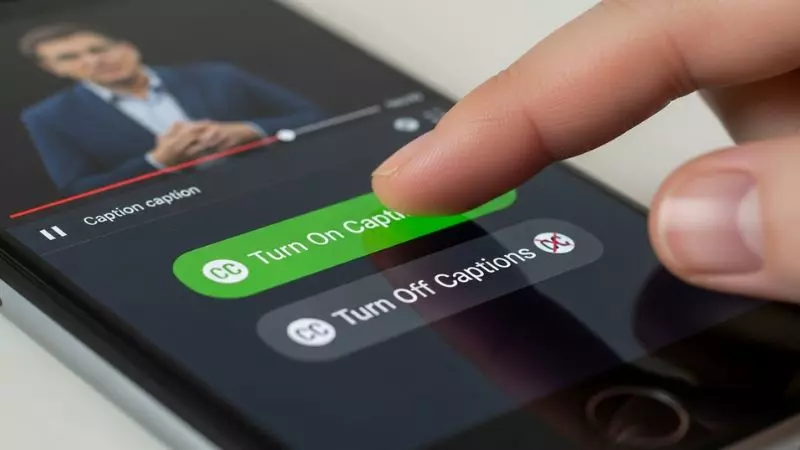
Turn Off Youtube Captions
Many users ask how to turn off YouTube captions when subtitles appear automatically. Disabling captions improves viewing experience if you do not need text on the screen. You can control captions easily on desktop, mobile, and TV devices.
Turning off captions removes clutter and lets you enjoy full video visuals, especially for music, gaming, and entertainment videos.
Steps to turn off YouTube captions on desktop
- Play any YouTube video
- Click the CC icon
- Make sure captions are off
- Refresh if needed
Steps to turn off captions on mobile app
- Open the video
- Tap the screen
- Tap CC button
- Disable subtitles
Reasons people turn off captions
- Text blocks video view
- Language mismatch
- Watching music videos
- Faster visual experience
Devices that support caption control
| Device | Caption Control |
| Desktop Browser | Yes |
| Android App | Yes |
| iOS App | Yes |
| Smart TV | Yes |
Turning off YouTube captions gives you a cleaner and distraction free viewing style.
Youtube Turn Off Captions
To YouTube turn off captions, you can change both per video settings and account preferences. Sometimes captions stay on because of saved accessibility settings, especially on shared devices.
Knowing where to disable them keeps your playback smooth across different videos and channels.
Permanent way to turn off captions
- Go to YouTube settings
- Open Playback and performance
- Find captions option
- Disable always show captions
Temporary way to turn off captions
- Tap CC icon on video
- Captions disappear instantly
Common problems with captions staying on
- Accessibility setting enabled
- Language auto detection
- Browser cache issues
- TV app defaults
Fix caption issues
- Clear app cache
- Update YouTube app
- Check accessibility settings
- Restart device
YouTube caption control lets you customize how you watch videos without interruption.
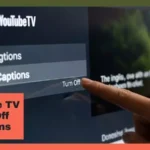
Youtube Tv Turn Off Captions
YouTube TV turn off captions is slightly different from the mobile or desktop version because it runs on smart TVs and streaming devices. Captions often turn on automatically for accessibility, but you can disable them quickly.
On YouTube TV, captions are managed through the player settings menu while watching content.
Steps to turn off captions on YouTube TV
- Play any video
- Use remote to open settings
- Select CC option
- Turn subtitles off
- Exit menu
Where captions appear on YouTube TV
- Live TV shows
- Movies and series
- Recorded programs
- On demand videos
Why captions auto enable on TV
- Accessibility preferences
- Family account settings
- Language detection
- App default behavior
YouTube TV caption control comparison
| Platform | Ease of Control | Location |
| Desktop | Easy | CC icon |
| Mobile | Easy | On screen menu |
| YouTube TV | Medium | Remote settings |
As a teacher tip, always check your TV accessibility settings if captions keep turning on automatically. It helps maintain smooth viewing and better entertainment experience.
YouTube Captions Keep Turning On Issue
Youtube Captions Keep Turning On
When YouTube captions keep turning on, it usually means your account, device, or app has accessibility or playback settings enabled by default. Many users notice captions appear automatically even after turning them off on a previous video. This happens because YouTube saves preferences per device, browser, and profile.
From a user experience angle, automatic captions can be helpful, but for many viewers they become distracting. Fixing the issue improves clean playback and avoids repeated subtitle overlays on every video you watch.
Common reasons captions keep turning on
- Accessibility setting enabled in YouTube
- Always show captions option active
- Browser remembers caption preference
- TV or mobile app default behavior
- Language detection mismatch
- Shared account settings
How to stop captions from auto enabling
- Open YouTube settings
- Go to Playback and performance
- Disable Always show captions
- Turn off Include auto generated captions
- Refresh the page or app
- Restart your device
Devices where the issue appears most
| Platform | Caption Behavior | Fix Location |
| Desktop Browser | Saves CC preference | YouTube settings |
| Mobile App | App level default | App settings |
| Smart TV | Accessibility based | TV player menu |
| YouTube TV | Profile controlled | Playback options |
Fixing the root setting once usually stops captions from turning on repeatedly.
Youtube Keeps Turning On Captions
If YouTube keeps turning on captions across different videos, your account level preferences are likely overriding manual changes. Even if you click CC off on one video, YouTube may reapply captions on the next playback because of saved accessibility behavior.
Creators and viewers often face this issue after updates, logging in on new devices, or switching between browsers. Understanding where YouTube stores caption preferences helps you control them properly.
Places to check when captions keep activating
- YouTube account playback settings
- Browser accessibility settings
- Mobile app subtitle preferences
- TV device accessibility options
- Family account profiles
Step by step fix on desktop
- Click profile icon
- Open Settings
- Select Playback and performance
- Turn off Always show captions
- Turn off Auto generated captions
- Save changes
Step by step fix on mobile app
- Open YouTube app
- Tap profile icon
- Go to Settings
- Open Captions
- Disable show captions
Extra troubleshooting tips
- Clear browser cache
- Update YouTube app
- Log out and log in again
- Check language settings
Once these are corrected, YouTube stops forcing captions and respects your viewing preference.
Why Do Youtube Captions Keep Turning On
Many users ask why do YouTube captions keep turning on even after disabling them. The reason is usually linked to accessibility features, account syncing, and device level subtitle preferences. YouTube tries to improve accessibility, but sometimes it applies captions too aggressively.
Another factor is that YouTube treats captions as part of user experience optimization. If you often watch muted videos or use subtitles, YouTube assumes you prefer captions and auto enables them again.
Main technical reasons behind auto captions
- Accessibility mode is active
- Language preference mismatch
- Auto generated captions enabled
- Profile syncing across devices
- Smart TV subtitle defaults
Behavior based triggers
- Watching videos without sound
- Using captions frequently before
- Switching between devices
- Using shared accounts
How to prevent future caption issues
- Turn off Always show captions
- Disable auto generated subtitles
- Set your preferred language
- Avoid enabling CC repeatedly
- Check every device once
Caption behavior comparison
| Cause | Result | Solution |
| Accessibility setting | Captions forced | Disable in settings |
| Device preference | Overrides manual off | Change device subtitle option |
| Account sync | Reapplies CC | Update account playback settings |
| App update | Resets defaults | Reconfigure captions |
As a guide, controlling captions at the account and device level is the key. Once fixed, YouTube will stop turning captions on automatically and your viewing experience stays clean, smooth, and distraction free.
Fix YouTube Captions Not Working
Youtube Captions Not Working
When YouTube captions not working appears, it usually means subtitles fail to load, sync, or display on your device. This problem affects accessibility, learning, and SEO value for viewers and creators. Caption issues often come from app glitches, browser cache, network problems, or disabled settings.
As a user or creator, fixing caption problems ensures smooth playback and better content understanding. Captions also help YouTube index videos correctly, so keeping them functional improves discoverability and user experience.
Common reasons captions stop working
- CC option disabled in player
- Weak internet connection
- Outdated YouTube app
- Browser cache conflicts
- Video has no captions uploaded
- Language mismatch settings
Quick fixes for captions not working
- Refresh the video page
- Toggle CC on and off
- Check YouTube settings
- Update browser or app
- Restart device
- Try another video
Where captions usually fail
| Platform | Issue Type | Fix Area |
| Desktop | Cache conflict | Browser settings |
| Mobile App | App glitch | App update |
| Smart TV | Sync delay | Player menu |
| YouTube TV | Profile setting | Playback options |
Fixing captions early keeps your watching experience smooth and frustration free.
Youtube Captions Not Showing
If YouTube captions not showing, the CC button may appear but nothing displays on screen. This happens when captions are unavailable for that video, blocked by settings, or delayed due to loading problems.
Captions not showing is common on Shorts, live streams, and older videos where subtitles are not added properly. Users should confirm both player and account preferences before assuming an error.
Why captions are not showing
- Video has no subtitle track
- Auto captions disabled
- Language not supported
- CC opacity set to zero
- Player glitch
Step by step fix
- Click CC icon
- Open settings gear
- Choose Subtitles
- Select correct language
- Increase caption text opacity
- Reload the video
Check caption style settings
- Font size visibility
- Background color contrast
- Window opacity level
- Text color clarity
Caption visibility comparison
| Setting | Wrong Result | Correct Result |
| Opacity 0% | Invisible text | Clear captions |
| Wrong language | No subtitles | Correct language track |
| CC off | No display | Captions visible |
Adjusting caption style and language usually solves the not showing issue quickly.
Youtube Automatic Captions Not Available
When YouTube automatic captions not available, it means YouTube could not generate subtitles for that video. This often happens due to poor audio quality, music only content, unsupported language, or copyright restrictions.
Auto captions depend on speech recognition, so videos with noise, fast talking, or heavy accents may fail to generate text. Creators should upload manual captions for better control and SEO.
Reasons auto captions are unavailable
- No clear spoken audio
- Unsupported language
- Music only videos
- Live stream limitations
- Copyright protected content
What creators can do
- Upload manual subtitle files
- Improve audio quality
- Use clear speech
- Add transcript manually
- Reprocess captions in Studio
Auto vs manual captions
| Feature | Auto Captions | Manual Captions |
| Availability | Limited | Always available |
| Accuracy | Medium | High |
| SEO Value | Moderate | Strong |
| Control | Low | Full control |
If auto captions fail, manual subtitles are the safest and most professional solution for accessibility and ranking.
Youtube Error Loading Captions
A YouTube error loading captions message appears when subtitles fail to sync with the video player. This is usually caused by network interruptions, corrupted cache files, outdated apps, or server response delays.
Caption loading errors reduce accessibility and viewer satisfaction. Solving them improves playback stability and keeps subtitles functioning correctly.
Causes of caption loading errors
- Slow internet speed
- Temporary server issues
- Browser extension conflicts
- Corrupted cache data
- Outdated YouTube app
How to fix error loading captions
- Refresh the page
- Check internet connection
- Disable browser extensions
- Clear cache and cookies
- Update YouTube app
- Try incognito mode
Advanced troubleshooting
- Switch browser
- Log out and log in
- Reset app settings
- Test on another device
Error fix checklist
| Action | Effect |
| Refresh page | Reload captions |
| Clear cache | Remove conflicts |
| Update app | Fix bugs |
| Change browser | Avoid extension errors |
As a guide, always test captions on another device when errors appear. It helps identify whether the issue is account based, device based, or network related.
YouTube Subtitle Size Settings
How To Make Youtube Captions Bigger
Many viewers ask how to make YouTube captions bigger so subtitles are easier to read on mobile, desktop, or TV screens. Bigger captions improve accessibility, reduce eye strain, and help users follow videos clearly, especially on large displays and small phones.
YouTube allows you to customize subtitle size, font, background, and window settings directly from the player or account preferences. Adjusting these settings gives you full control over caption visibility and comfort.
Steps to make YouTube captions bigger on desktop
- Play any YouTube video
- Click the Settings gear icon
- Select Subtitles
- Open Options
- Increase font size slider
- Save and apply
Steps on mobile app
- Open YouTube app
- Tap your profile icon
- Go to Settings
- Select Captions
- Increase text size
- Apply changes
Steps on Smart TV
- Play a video
- Open player settings with remote
- Select Captions
- Increase text scale
- Exit menu
Other caption improvements
- Increase background opacity
- Choose bold font style
- Adjust window color
- Improve contrast for readability
Caption size comparison
| Size Option | Best For |
| Small | Clean minimal look |
| Medium | Normal viewing |
| Large | Accessibility support |
| Extra Large | TV and distance viewing |
As a guide, bigger captions help learning, accessibility, and long watch sessions without eye fatigue.
How To Make Youtube Captions Smaller
Some users prefer minimal subtitles and ask how to make YouTube captions smaller for a cleaner video view. Smaller captions reduce distraction and keep focus on visuals, especially for music, gaming, and cinematic content.
YouTube lets you decrease caption size and adjust style so subtitles do not block important parts of the screen.
Steps to make captions smaller on desktop
- Play the video
- Click Settings icon
- Choose Subtitles
- Open Options
- Decrease font size
- Save changes
Steps on mobile
- Open YouTube app
- Tap profile icon
- Go to Settings
- Select Captions
- Reduce text size
Steps on Smart TV
- Open player settings
- Select Captions
- Lower text scale
- Exit menu
Extra style adjustments
- Reduce background box size
- Lower window opacity
- Choose thinner font
- Adjust text position
Caption size impact
| Caption Size | Viewing Experience |
| Very Large | Easy to read but blocks screen |
| Medium | Balanced view |
| Small | Clean and minimal |
| Very Small | Best for visuals focused content |
Teacher tip: Always match caption size with your screen and distance. Smaller captions work well for short form and entertainment, while larger captions are perfect for tutorials and learning videos.
How to Add Subtitles on YouTube
How To Add Subtitles To A Youtube Video That Is Not Yours
Adding subtitles to a YouTube video that is not yours requires using YouTube’s Community Contributions feature or third-party tools. While you cannot directly edit someone else’s video, YouTube allows submitting captions for approval if the creator has enabled contributions.
This is useful for helping non-English speaking audiences or improving accessibility. Once approved, your subtitles appear alongside the original video for viewers globally.
Steps to add subtitles to a video you don’t own
- Open the video on YouTube
- Click the three dots below the video
- Select “Add translations” or “Add subtitles” (if enabled)
- Choose the language
- Type or upload subtitles
- Submit for creator approval
Tips for contributing subtitles
- Use clear, concise language
- Match timing accurately
- Include long tail keywords for niche relevance
- Avoid slang that might confuse viewers
- Proofread before submitting
Benefits of contributing subtitles
- Increase video accessibility
- Support global audiences
- Gain exposure for your transcription skills
- Help improve YouTube SEO indirectly
- Promote multilingual content
Alternatives
- Use third-party subtitle apps to create a separate caption file
- Share subtitles as a downloadable transcript for personal use
How To Add Subtitles To Youtube Video On Mobile
Adding subtitles directly on mobile devices is possible if you are the creator of the video. YouTube Studio mobile app allows uploading subtitle files or typing captions manually.
Mobile subtitle editing is convenient for creators on the go and ensures all content remains accessible, even for Shorts or vertical videos.
Steps to add subtitles on YouTube mobile app
- Open YouTube Studio app
- Select the video you want to edit
- Tap “Edit” → “Subtitles”
- Tap “Add Language” → select your language
- Upload a file or type captions manually
- Sync timing and save
Tips for mobile subtitle editing
- Use short, clear lines for readability
- Match captions to speech closely
- Preview video after adding
- Keep long tail keywords in mind for SEO
- Check formatting and punctuation
Advantages of mobile subtitle addition
- Edit anywhere
- Quick updates for trending content
- Support accessibility immediately
- Optimize for Shorts and vertical videos
How To Turn On Subtitles On Youtube Without Cc
Sometimes users want to turn on subtitles on YouTube without CC when a video doesn’t have official captions. YouTube automatically generates subtitles for supported languages using AI. These auto-generated captions can be enabled even if the CC button is not visible.
Steps to enable subtitles without CC
- Open the video
- Click the Settings gear icon
- Select Subtitles / Captions
- Choose “Auto-generated”
- Select your preferred language
- Watch video with captions enabled
Tips for using auto-generated captions
- Use on videos with clear speech
- Adjust caption style and size for readability
- Review timing if creating transcripts
- Combine with downloaded transcript tools for notes
- Understand AI captions may contain errors
Benefits
- Improve comprehension for muted viewing
- Enhance accessibility
- Support SEO if used for content repurposing
How To Get English Subtitles On Youtube Without Cc
To get English subtitles on YouTube without CC, you rely on YouTube’s auto-translate or automatic captioning feature. This is ideal for videos in other languages or when no captions are uploaded by the creator.
Steps to get English subtitles without CC
- Open the video
- Click the Settings gear icon
- Go to Subtitles → Auto-translate
- Select English
- Enjoy English captions even if the video is in a different language
Tips for better English auto-captions
- Ensure video audio is clear
- Avoid heavy background music
- Use for tutorials, lectures, or interviews
- Combine with downloaded transcript for offline use
- Check timing for learning purposes
Advantages
- Understand foreign language content
- Access global content for study or research
- Improve learning speed
- Use captions for blog posts or summaries
Comparison of subtitle methods
| Method | Requirement | Accuracy | Use Case |
| Manual Upload | Creator access | High | Official videos |
| Community Contributions | Creator enabled | Medium | Public contributions |
| Auto-generated | No CC | Medium | Any supported video |
| Auto-translate | Non-English video | Medium | Global audiences |
Enabling subtitles in these ways improves accessibility, SEO potential, and user engagement, making YouTube videos understandable for everyone.
Frequently Asked Questions
How to turn on subtitles on YouTube without CC
You can enable auto-generated subtitles by clicking the Settings gear icon, selecting Subtitles, and choosing your preferred language.
How to add subtitles to a YouTube video that is not yours
If the creator allows, use Community Contributions to submit subtitles or translations for approval. Otherwise, you cannot directly edit someone else’s video.
How to add subtitles to YouTube video on mobile
Open YouTube Studio app, select your video, tap Subtitles, choose a language, and either upload a subtitle file or type captions manually.
How to get English subtitles on YouTube without CC
Enable Auto-translate in the Subtitles menu and select English to view automatically generated captions even if the video has no official CC.
Can I download YouTube captions for offline use
Yes, you can download captions using YouTube Studio for your own videos or use trusted third-party tools to extract subtitle files.
Why are YouTube captions not showing
Captions may not appear due to disabled CC, unsupported language, auto-generated captions unavailable, or playback settings needing adjustment.
Final Words
YouTube Captions make videos accessible, improve SEO, and engage viewers globally. Proper use of YouTube Captions enhances learning, allows multilingual audiences to follow your content, and increases watch time. Whether using manual, auto-generated, or translated captions, optimizing YouTube Captions ensures your videos reach wider audiences.
Always check caption settings, font size, and timing for the best user experience. Incorporating accurate YouTube Captions is crucial for creators aiming for higher engagement and discoverability.

Chriselle Lim is a passionate digital creator and lifestyle blogger based in California, USA. As the voice behind Blogzeno, she shares creative captions, inspiring Instagram bios, insightful celebrity stories, and simple insurance guides designed for everyday readers. Emily believes that words have the power to connect people whether it’s through a perfect caption or a helpful article.
With years of experience in online writing and content strategy, Emily’s mission is to make information both useful and enjoyable. Her work blends creativity with clarity, helping readers express themselves confidently and stay informed about what truly matters.
When she’s not writing, you’ll find her exploring photography, social media trends, and new ways to inspire digital creators worldwide. Follow her journey on Blogzeno — where creativity meets everyday life.