Adding captions on YouTube is more than just a way to make your videos accessible. It helps boost watch time, viewer engagement, and video reach across different audiences. Whether you are a beginner or an experienced creator, understanding how to add accurate captions on YouTube can significantly improve your channel’s performance.
Using YouTube captions effectively also improves SEO, making your content easier to discover through search queries and related video recommendations. With the right captions, your videos can reach international audiences, increase retention, and even attract more subscribers organically.
What Are Captions on YouTube?
Captions on YouTube are text versions of the spoken content in your videos. They allow viewers to read along while watching, making your content accessible to a wider audience. Captions are essential for viewers who are hearing impaired, watching without sound, or speak a different language.
Adding captions also helps YouTube understand your video content better, which can improve SEO and ranking in search results. Captions can include:
- Dialogue or narration transcription
- Sound effects description (e.g., [applause], [music])
- Speaker identification for clarity
Properly adding captions can increase watch time, engagement, and viewer retention, which are critical metrics for growing a YouTube channel in 2026.
Difference Between Captions and Subtitles on YouTube
Many creators confuse captions with subtitles, but they serve slightly different purposes:
| Feature | Captions | Subtitles |
| Purpose | For accessibility and clarity | For translation into another language |
| Includes | Dialogue + sound effects | Only spoken dialogue |
| Visibility | Can be turned on/off (closed captions) | Usually optional |
| Target Audience | Hearing impaired or anyone who wants to follow audio | Viewers who don’t speak the video language |
Using captions correctly ensures that your content is user-friendly, globally accessible, and SEO optimized. Subtitles can complement captions, especially if your target audience speaks multiple languages.
Open Captions vs Closed Captions on YouTube
Understanding the difference between open and closed captions is essential for content creators:
Open Captions:
- Always visible and cannot be turned off
- Useful for short social media clips where audio may be off
- Ideal for promotional videos
Closed Captions:
- Can be toggled on or off by the viewer
- More flexible and user-friendly
- Recommended for full-length YouTube videos to maximize accessibility and engagement
Key Tip: For YouTube SEO, closed captions are preferred because they allow YouTube’s algorithm to index your spoken content, improving discoverability.
Why Captions Matter for Accessibility & SEO
Captions are not just a tool for convenience; they are critical for accessibility, inclusivity, and search visibility:
- Accessibility: Captions help viewers with hearing impairments or those in sound-off environments.
- SEO Benefits: YouTube can index your captions, helping your video appear in search queries and suggested videos.
- User Engagement: Captions keep viewers engaged, increase watch time, and reduce bounce rates.
- Global Reach: Adding captions in multiple languages helps attract international audiences.
Quick Tips for Captions Optimization:
- Use accurate transcription to match spoken words
- Include keywords naturally in captions
- Avoid overloading captions; keep them readable
- Check timing to ensure captions sync with speech
How to Turn Captions On or Off on YouTube
Captions on YouTube can enhance video accessibility, user engagement, and SEO. Knowing how to turn captions on or off across different devices ensures viewers can enjoy content according to their preferences. YouTube offers flexible options for standard videos, Shorts, and YouTube TV, making it easy to control captions visibility.
Below, we explain the latest methods for enabling and disabling captions efficiently.
How to Turn On Subtitles on YouTube Without CC
Not all videos display a CC (Closed Captions) button, especially if creators haven’t manually added captions. However, you can still enable subtitles automatically:
Steps to Enable Subtitles Without CC:
- Open the YouTube video you want to watch.
- Tap the Settings (gear icon) at the bottom of the video player.
- Select Subtitles / CC.
- Choose Auto-translate to display captions in your preferred language.
- Subtitles will now appear on the video even if the CC button is missing.
Tip: Using auto-subtitles helps understand foreign content and improves accessibility for non-native speakers.
How to Turn Off Captions on YouTube (All Devices)
Turning off captions can make your viewing experience cleaner if you don’t need text on screen.
Steps Across Devices:
- Desktop: Click the CC button on the video player or go to Settings → Subtitles/CC → Off.
- Mobile App: Tap the video, then Settings → Captions → Off.
- Tablet: Same as mobile, navigate via the Settings icon → Captions → Off.
Quick Tip: Turning captions off doesn’t delete them; you can enable them anytime for accessibility.
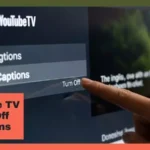
How to Turn Off Captions on YouTube TV
YouTube TV has a slightly different interface for captions:
Steps:
- While streaming, press the up button on your remote to open the menu.
- Navigate to Settings → Captions.
- Toggle captions off or customize them according to style, size, and color.
Pro Tip: Turning off captions on YouTube TV improves viewing comfort for large screens while still keeping content accessible when needed.
How to Turn Off Captions on YouTube Shorts
YouTube Shorts often come with automatic captions. Here’s how to disable them:
Steps:
- Open a Short in the YouTube mobile app.
- Tap the three dots (more options) icon on the video.
- Select Captions → Off.
Note: Some Shorts may have baked-in captions added by the creator. These cannot be removed, as they are part of the video itself.
How to Turn Off Auto Captions on YouTube
Auto captions are generated by YouTube’s AI to make videos accessible even if creators don’t provide manual captions. To disable auto captions:
Steps:
- Play the video and tap the CC icon.
- Open Settings → Subtitles / CC → Auto-generated.
- Toggle captions off.
Important: Auto captions may sometimes contain minor errors. Disabling them can improve visual clarity, but turning them on ensures accessibility for hearing-impaired viewers.
Summary Table: Turning Captions On/Off Across YouTube Platforms
| Device/Platform | Turn On Captions | Turn Off Captions | Notes |
| Desktop | Click CC or Settings → Subtitles | Settings → Subtitles → Off | Works for standard videos |
| Mobile App | Settings → Captions → On | Settings → Captions → Off | Applies to all standard videos |
| YouTube TV | Settings → Captions → On | Settings → Captions → Off | Customize style, size, color |
| YouTube Shorts | More Options → Captions → On | More Options → Captions → Off | Some creator captions cannot be removed |
| Auto Captions | CC icon → Auto-generated → On | CC icon → Auto-generated → Off | Generated by YouTube AI, may have errors |
How to Add and Edit Captions on YouTube Videos
Adding and editing captions on YouTube is essential for improving accessibility, engagement, and SEO ranking. Proper captions ensure your videos reach a wider audience, including viewers with hearing impairments and international audiences who rely on subtitles.
Learning how to add, edit, and adjust captions makes your content more professional and increases watch time and discoverability.
How to Add Captions on a YouTube Video
Adding captions to your own YouTube video is simple and can be done in a few steps:
Steps to Add Captions:
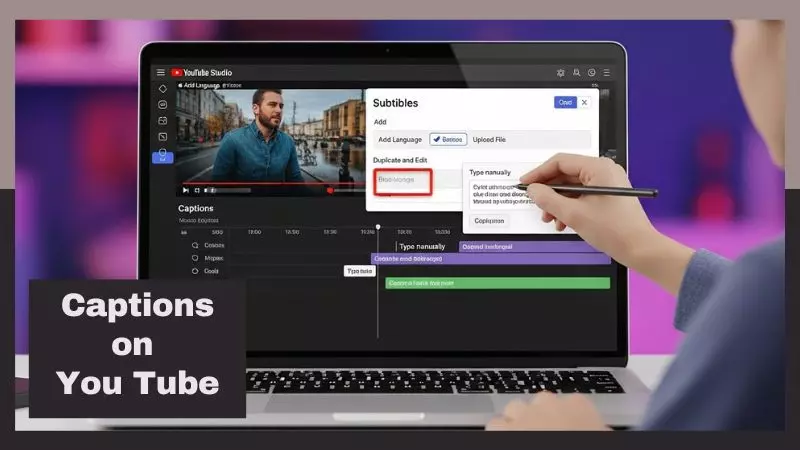
- Open YouTube Studio and select Content from the left menu.
- Click the video you want to add captions to.
- Navigate to Subtitles → Add Language, then select your preferred language.
- Click Add → Upload File (if you have a transcript) or Type Manually to create captions directly.
- Sync your captions with the video timeline and save changes.
Tips for Effective Captions:
- Use accurate spelling and punctuation
- Include sound effects and speaker names for clarity
- Avoid long blocks of text; keep captions readable
How to Add Subtitles to a YouTube Video That Is Not Yours
YouTube allows you to add subtitles to videos you don’t own using Community Contributions, although the feature is limited and may vary by region.
Steps:
- Open the video on YouTube and click Settings → Subtitles / CC → Add Subtitles.
- Choose your language.
- Type your translation or subtitle manually, syncing it with the video timeline.
- Submit the subtitles for review. The video owner must approve them before they go live.
Important: Community subtitles help expand global reach but may require owner approval before publishing.
How to Edit Captions on YouTube (Mobile & Desktop)
Editing captions ensures accuracy, clarity, and SEO optimization.
On Desktop:
- Open YouTube Studio → Content.
- Click your video → Subtitles → Edit.
- Adjust timing, text, or add missing dialogue.
- Save changes to update captions instantly.
On Mobile:
- Open the YouTube Studio app.
- Select your video → Subtitles → Edit.
- Make necessary changes and tap Save.
Pro Tip: Always check that captions sync correctly with speech and include keywords naturally for SEO benefits.
How to Move Captions on YouTube Mobile
Sometimes captions may appear off-sync or out of position on mobile devices. YouTube allows minor adjustments:
Steps:
- Open YouTube Studio app → select your video.
- Go to Subtitles → Edit.
- Tap the caption segment you want to move.
- Adjust the timeline slider to sync captions with audio.
- Save the changes to update the video.
Tip: Moving captions accurately ensures a better viewer experience and reduces confusion, especially for fast-paced or dialogue-heavy videos.
Summary Table: Adding & Editing Captions Across Platforms
| Platform/Device | Add Captions | Edit Captions | Notes |
| Desktop | YouTube Studio → Subtitles → Add | Subtitles → Edit | Supports manual and uploaded files |
| Mobile App | YouTube Studio app → Subtitles → Add | Subtitles → Edit | Quick edits on the go |
| Non-owned Videos | Settings → Subtitles → Add | N/A (Owner approval required) | Use for global subtitles |
How to Customize Captions on YouTube
Customizing captions on YouTube allows you to enhance readability, viewer experience, and engagement. Properly adjusted captions make your content more accessible, especially for viewers with visual impairments or those watching on small screens.
YouTube provides options to resize captions, change their style, and reposition them to fit different devices and personal preferences.
How to Make Captions Bigger on YouTube
Small captions can be hard to read, particularly on mobile devices or tablets. Here’s how to increase caption size:
Steps:
- Play a YouTube video and click the Settings (gear icon).
- Select Subtitles / CC → Options.
- Adjust the Font size slider to make captions bigger.
- Save your settings.
Tips for Better Viewing:
- Larger captions improve comprehension and engagement.
- Ensure captions don’t overlap important on-screen visuals.
- Test different font sizes on both desktop and mobile.
Why Captions Look Too Small on YouTube
Sometimes captions may appear tiny or unreadable due to:
- Device settings: Small screens reduce default caption size.
- Video resolution: Low-resolution videos can make captions appear pixelated.
- Default YouTube settings: Captions may not be optimized for your viewing device.
Solution: Always check the caption options menu and increase font size when necessary. This ensures captions remain clear and readable, enhancing user experience.
How to Change Caption Position & Style
YouTube allows full customization of captions, including positioning and styling, for better accessibility:
Steps to Change Position & Style:
- Open the video → click Settings → Subtitles / CC → Options.
- Change Caption Style:
- Font type (e.g., Serif, Sans-serif)
- Font color
- Background color
- Opacity
- Font type (e.g., Serif, Sans-serif)
- Adjust Position: Move captions higher or lower to avoid overlapping critical video elements.
- Save your settings.
Pro Tips:
- Use high-contrast colors for visibility.
- Avoid covering important visuals or text in the video.
- Consistent caption style improves professionalism and viewer retention.
Summary Table: Caption Customization Options
| Option | Purpose | Recommended Settings |
| Font Size | Improve readability | Medium to Large, depending on screen size |
| Font Style | Aesthetic & clarity | Sans-serif for modern videos, Serif for formal |
| Color & Background | Contrast with video | High contrast: White text on dark background |
| Position | Avoid overlap | Slightly above bottom edge, adjustable |
Captions on Different YouTube Platforms
YouTube offers captions across multiple platforms to enhance accessibility, viewer engagement, and content discoverability. However, each platform—YouTube TV, Shorts, Live, Music, and Kids has unique caption features and settings.
Understanding these differences ensures you can optimize captions for every viewer type.
Captions on YouTube TV
YouTube TV supports closed captions for live and recorded content, allowing users to turn them on or off:
Features:
- Captions can be customized: font size, color, and background.
- Works for live broadcasts and DVR recordings.
- Improves accessibility for viewers with hearing impairments.
Steps to Enable/Disable:
- Press the up button on your remote while streaming.
- Navigate to Settings → Captions.
- Toggle captions on or off and adjust style.
Tip: Using captions on YouTube TV increases comprehension, especially in noisy environments or for large screens.
Captions on YouTube Shorts
YouTube Shorts often come with auto-generated captions:
Key Points:
- Captions are usually short, synchronized, and dynamic.
- Some Shorts may have creator-baked captions that cannot be turned off.
- Auto-generated captions improve accessibility and international reach.
How to Toggle:
- Tap the three-dot menu → Captions → On/Off.
Pro Tip: For creators, manually adding captions to Shorts boosts engagement and ensures accuracy.
Captions on YouTube Live
Live streaming captions are crucial for real-time accessibility:
Options:
- YouTube Live supports auto captions using speech recognition.
- Creators can also upload a caption file in real time using third-party tools.
- Helps non-native speakers and hearing-impaired viewers follow live content.
Quick Steps:
- Go to Live Dashboard → More Options → Closed Captions.
- Enable Auto-generated captions or connect a captioning service.
Tip: Always inform viewers that captions are available for live streams, as accuracy may vary slightly.
Captions on YouTube Music
YouTube Music allows captions mainly for official music videos and lyric videos:
Features:
- Captions usually display lyrics in sync with music.
- Helps improve viewer retention and sing-along experience.
- Enhances global accessibility for non-native speakers.
Steps to Enable:
- Play the video in YouTube Music.
- Tap CC icon (if available) to display lyrics.
Tip: Not all YouTube Music videos support captions; uploading lyric-friendly videos increases discoverability.
Captions on YouTube Kids
YouTube Kids is designed for children’s accessibility and safety:
Key Points:
- Captions are limited and must be child-friendly.
- Captions improve reading skills and comprehension.
- Some videos may have auto-generated captions, but customization is limited.
Pro Tip: For parents, enabling captions helps monitor content comprehension, while for creators, it ensures kid-friendly accessibility.
Summary Table: Captions Across YouTube Platforms
| Platform | Caption Type | Customization | Notes |
| YouTube TV | Closed captions | Font, color, size, position | Works for live & DVR |
| YouTube Shorts | Auto & creator-baked | Limited | Manual captions boost engagement |
| YouTube Live | Auto-generated or third-party | Limited | Real-time accessibility |
| YouTube Music | Lyric captions | Minimal | Only for music/lyric videos |
| YouTube Kids | Child-friendly auto | Limited | Improves reading & comprehension |
YouTube Captions Not Working? Common Problems & Fixes
Even though captions on YouTube are designed to improve accessibility, engagement, and SEO, users sometimes encounter issues. From captions not showing to timing delays, knowing the common problems and their fixes ensures a smooth viewing experience. This guide explains the latest solutions in 2026 for desktop, mobile, and TV platforms.
Captions Not Showing on YouTube
If captions do not appear on a video, it may be due to:
Common Causes:
- The video does not have captions (manual or auto-generated).
- CC option is turned off in settings.
- Browser or app glitch.
Fixes:
- Click the CC button or open Settings → Subtitles/CC → On.
- Refresh the browser or restart the app.
- Check if the video supports auto-generated captions.
Tip: Auto-captions may take a few minutes after upload to appear.
Captions Not Working on YouTube App
Issues on Mobile App:
- Outdated app version.
- Device language or subtitle settings mismatch.
- Temporary app glitches.
Fixes:
- Update the YouTube app to the latest version.
- Go to Settings → Captions → On, and select your preferred language.
- Clear cache or restart the app.
Pro Tip: Mobile app captions are sometimes delayed; switching video quality can help sync captions.
Captions Not Working on YouTube TV
Common Problems:
- Captions may not appear due to TV software glitches.
- Closed captions are disabled by default on some devices.
- Live streams may not have real-time captions enabled.
Fixes:
- Press Up → Settings → Captions → On.
- Restart YouTube TV app or device.
- For live content, ensure auto captions are enabled.
Tip: Regularly check for firmware or app updates on smart TVs for proper caption support.
Captions Keep Turning On Automatically
Sometimes captions turn on without user input:
Causes:
- Browser or app default caption settings.
- Video uploaded with forced captions by the creator.
Fixes:
- Desktop: Settings → Subtitles/CC → Off and save.
- Mobile: Settings → Captions → Off.
- YouTube account: Check playback and accessibility settings for default caption preferences.
Captions Disappearing on YouTube
Captions may vanish intermittently during playback:
Causes:
- Auto-generated captions failing temporarily.
- Network connectivity issues.
- App or browser incompatibility.
Fixes:
- Refresh video or reload YouTube app.
- Switch to different browser or device.
- Re-enable captions from Settings → Subtitles/CC.
Captions Delayed on YouTube
Delayed captions can confuse viewers, especially during dialog-heavy or tutorial videos.
Causes:
- Low video playback quality (e.g., 240p).
- Auto-generated captions lagging behind speech.
- Browser or app performance issues.
Fixes:
- Increase video quality to 720p or higher.
- For creators, edit captions in YouTube Studio → Subtitles → Sync.
- Clear cache or restart device if delay persists.
Pro Tip: For live streams, slight caption delays are normal due to real-time speech recognition processing.
Summary Table: Common YouTube Caption Issues & Fixes
| Problem | Cause | Fix |
| Captions not showing | No captions or CC off | Enable CC, refresh video |
| Captions not working on mobile | Outdated app or settings mismatch | Update app, check settings |
| Captions not working on TV | Disabled or glitch | Settings → Captions → On, restart device |
| Captions auto-turn on | Default settings or forced captions | Adjust account & playback settings |
| Captions disappearing | Network or browser issue | Refresh, switch device, re-enable captions |
| Captions delayed | Low quality or auto-sync lag | Increase quality, edit captions in Studio |
Advanced YouTube Caption Features
YouTube captions are more than just text on screen. Advanced features allow creators to enhance engagement, improve SEO, and repurpose content. Knowing how to search captions, extract transcripts, and optimize captions for engagement can give your channel a professional edge in 2026.
How to Search Captions on YouTube
YouTube allows viewers to search within captions for specific terms, making content easier to navigate and more discoverable.
Steps to Search Captions:
- Open the video and click the three-dot menu → Open Transcript.
- Use Ctrl + F (Windows) or Command + F (Mac) to find specific words.
- Click any transcript line to jump to that part of the video.
Benefits:
- Quickly locate key information in long videos.
- Helps viewers skip to relevant sections, increasing watch time.
- Improves content accessibility for research or learning purposes.
YouTube Captions to Text (Transcript Extraction)
Creators and viewers can extract captions as text to repurpose for blogs, subtitles, or study guides.
Steps:
- Open the video → click three-dot menu → Open Transcript.
- Copy the transcript directly or download using third-party tools.
- Edit for formatting, remove timestamps if needed.
Use Cases:
- Create blog posts, scripts, or e-books from video content.
- Translate content for international audiences.
- Improve SEO by adding keyword-rich text to your website.
Tip: Accurate captions improve transcript quality, so consider manual editing or AI-assisted transcription tools.
Best Captions for YouTube Videos (Engagement Tips)
Not all captions are created equal. Optimized captions can boost engagement, watch time, and retention.
Best Practices:
- Keep captions concise: Avoid long blocks of text.
- Use natural language: Mimic spoken words for readability.
- Include keywords naturally: Helps YouTube index your content.
- Add speaker names & sound descriptions: Improves clarity for multi-speaker videos.
- Style captions consistently: Font, color, and positioning enhance viewer experience.
Pro Tip: Engaging captions make your videos accessible, enjoyable, and searchable, which contributes to higher ranking and broader reach.
Summary Table: Advanced Caption Features
| Feature | Purpose | Benefits |
| Search Captions | Locate keywords in video | Save time, improve engagement |
| Transcript Extraction | Convert captions to text | Repurpose content, SEO advantage |
| Optimized Captions | Enhance readability & style | Boost retention, accessibility, watch time |
Best Practices to Use YouTube Captions for Growth
Captions are not just for accessibility they are a powerful tool to grow your YouTube channel. When used correctly, captions can boost engagement, improve watch time, enhance SEO, and expand your audience globally. Understanding best practices ensures your content performs at its full potential in 2026.
Do Captions Help YouTube SEO?
Absolutely! Captions help YouTube understand your video content so it can rank better in search results and suggested videos.
How Captions Improve SEO:
- Text indexing: YouTube crawls captions, making your keywords searchable.
- Increased watch time: Videos with captions are more engaging, signaling quality to YouTube.
- Higher discoverability: Captioned videos rank better in search engines and recommendations.
- Support for multiple languages: Using translated captions expands your reach to international audiences.
Pro Tip: Ensure captions are accurate, keyword-rich, and synced properly for maximum SEO benefit.
How Captions Increase Watch Time & Retention
Captions keep viewers engaged by making content easier to follow and understand, especially in noisy environments or for non-native speakers.
Ways Captions Improve Engagement:
- Viewers can follow along without sound, increasing video completion rates.
- Highlighting key phrases or speaker names improves comprehension.
- Well-timed captions reduce bounce rate, encouraging viewers to stay longer.
- Captions make your videos accessible for all, including hearing-impaired audiences.
Tips for Maximizing Watch Time:
- Keep captions clear and concise, aligned with spoken words.
- Use consistent font size, color, and placement to enhance readability.
- Include captions on all video types—tutorials, Shorts, live streams, and music videos.
Summary Table: YouTube Captions for Growth
| Benefit | How It Helps | Best Practice |
| SEO | Keywords in captions are indexed | Use accurate, keyword-rich captions |
| Watch Time | Viewers follow along without sound | Keep captions clear & concise |
| Retention | Captions improve comprehension | Sync captions with speech accurately |
| Global Reach | Translated captions reach international viewers | Add multilingual captions |
| Engagement | Improves viewer interaction & satisfaction | Style captions consistently |
Frequently Asked Questions
How do I turn captions on YouTube?
To enable captions, open the video and click the CC (Closed Captions) icon in the player controls. On desktop, you can also go to Settings → Subtitles/CC → On and choose a language or use auto-translate if supported. This works for standard videos, Shorts, and live streams.
How do I turn off YouTube captions?
Click the CC icon again to disable captions. On mobile and desktop, you can also navigate to Settings → Subtitles/CC → Off. For default caption preferences, visit YouTube Settings → Playback and Performance.
How to caption for YouTube?
Captioning your videos involves adding text for all spoken content. You can:
- Upload a caption file (SRT or TXT) via YouTube Studio
- Type captions manually in the Subtitles tab
- Use YouTube auto-generated captions and edit for accuracy
Adding captions boosts accessibility, watch time, and SEO, helping your videos reach a wider audience.
Why can’t I get captions on YouTube?
Captions might not appear if:
- The video doesn’t include captions
- YouTube hasn’t processed auto captions yet
- Your device/app language isn’t supported
- Browser or app needs updating or refreshing
Some videos simply do not have captions available.
How to turn on subtitles on YouTube without CC?
Even if the CC button isn’t visible, you can enable subtitles:
- Open the video → Settings → Subtitles
- Select Auto-translate to choose your preferred language
- Subtitles will appear automatically
How to turn off captions on YouTube Shorts?
For Shorts, tap the three-dot menu → Captions → Off. Note that some creator-baked captions cannot be removed, as they are part of the video itself.
How to turn off auto captions on YouTube?
- Play the video → tap the CC icon
- Go to Settings → Subtitles/CC → Auto-generated
- Toggle Off
Auto captions are generated by YouTube AI and may sometimes contain errors.
Captions not showing or delayed—what to do?
- Refresh the video or restart the app
- Update your YouTube app or browser
- Check Settings → Subtitles/CC → On
- For live streams, minor delays are normal due to real-time speech recognition
How to customize captions on YouTube?
You can adjust captions for better readability:
- Font size: Make captions bigger for small screens
- Font style & color: Choose high contrast and readable fonts
- Position: Move captions to avoid covering important visuals
Can captions improve YouTube SEO and engagement?
Yes! Proper captions:
- Make videos searchable through indexed keywords
- Increase watch time and retention
- Expand your audience globally with translated captions
- Improve overall viewer satisfaction and accessibility

Chriselle Lim is a passionate digital creator and lifestyle blogger based in California, USA. As the voice behind Blogzeno, she shares creative captions, inspiring Instagram bios, insightful celebrity stories, and simple insurance guides designed for everyday readers. Emily believes that words have the power to connect people whether it’s through a perfect caption or a helpful article.
With years of experience in online writing and content strategy, Emily’s mission is to make information both useful and enjoyable. Her work blends creativity with clarity, helping readers express themselves confidently and stay informed about what truly matters.
When she’s not writing, you’ll find her exploring photography, social media trends, and new ways to inspire digital creators worldwide. Follow her journey on Blogzeno — where creativity meets everyday life.